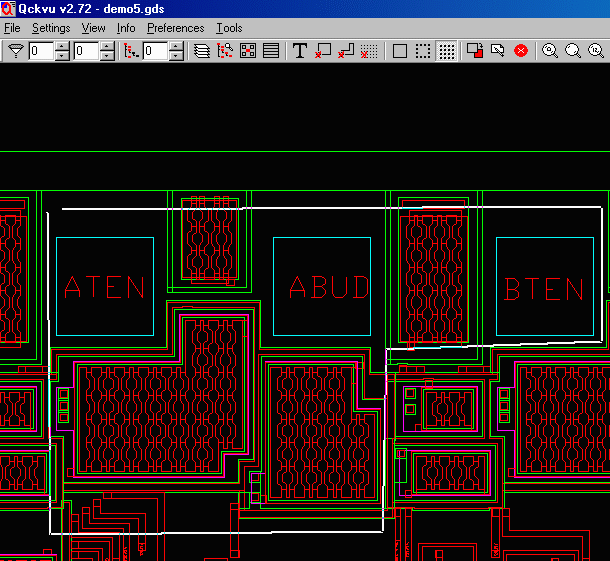
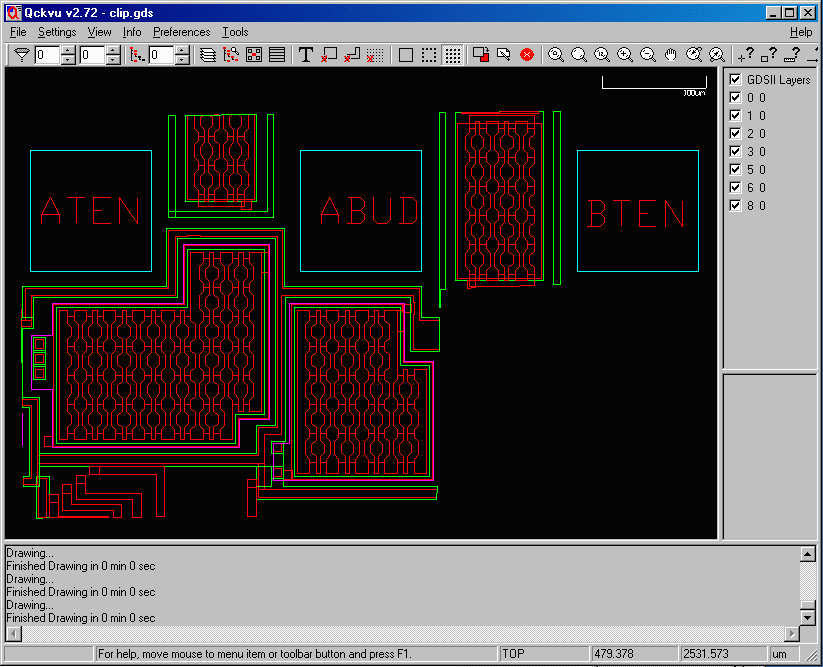
Suppose you need to pull out only a tiny part of a very large chip design for a special analysis. How to do it? Use Qckvu�s new Extract function.
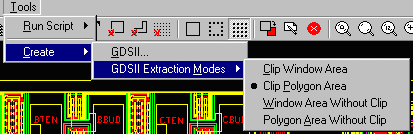
First step will be to pick the Extract mode you want to use.
Qckvu offers 4 different window extraction modes.
- Clip Window area - Qckvu will clip polygons selected to the rectangular window defined.
- Clip Polygon area - Qckvu will clip polygons selected to the polygon fence defined.
- Window area without clip - Qckvu will export "as is" polygons which cross window defined.
- Polygon area without clip - Qckvu will export "as is" polygons which cross polygon fence defined.
Qckvu�s Clip Polygon Example
First thing we will do is to select the Clip Polygon Area in the Extraction Mode menu. This function allows you to make a fence/polygon around the area you want to clip. It can have as many sides as you want.
Draw a polygon on the display and finish/close it with a double click. Anything crossing the window gets pulled into a new, smaller GDSII file.